
Single sign-on (SSO) is an authentication method that allows users to sign in using one set of credentials to multiple independent software systems.
We have validated SAML for Microsoft, Google and Okta, but in principle it should work for any other IdP using SAML. For OpenID only Microsoft is validated.
Note: SSO knowledge is required before you can set up this configuration. You can contact your identity provider (e.g. Microsoft) for support.
In MyTranssmart SSO can be configured in the menu Manage account via the tile Single Sign-On.
A new page will open.
You will see 2 collapsed sub pages. The first for SAML; the second for OpenID.
Explanation of fields:
SAML
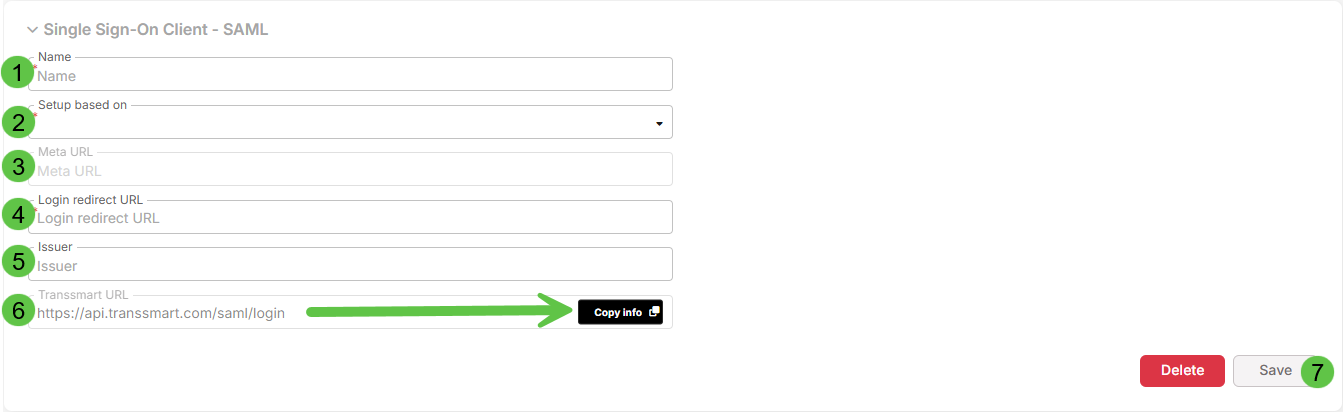
- In the Name field you can give the configuration a name; this name will be shown in the account and/or user settings.
- The Setup based on dropdown shows 2 options: “Meta Data” (used by Google) and “Meta URL” (used by Microsoft) and it determines the value of the next field.
- Fill in either the Meta Data or Meta URL, depending on the choice you made in step 2. This value comes from you / your SSO provider.
- Fill in the Login redirect URL. This value comes from you / your SSO provider.
- Optionally fill in the Issuer. This value comes from you / your SSO provider; not every provider or setup needs this field to be filled. See example screenshots below for some known configurations for Microsoft and Okta.
- The Transsmart URL is a value we provide; you need it to setup SSO in your environment. You can see the button Copy info to copy it to the clipboard.
- Press Save to save the changes.
OpenID
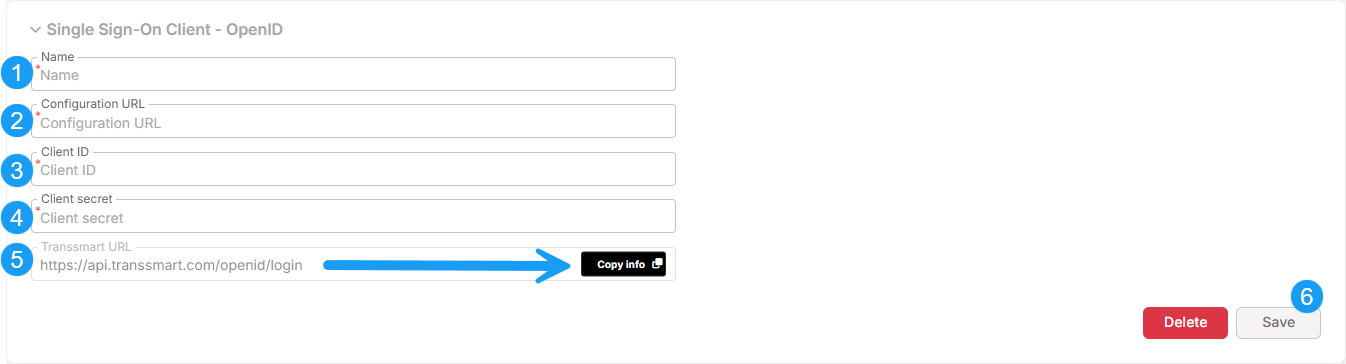
- In the Name field you can give the configuration a name; this name will be shown in the account and/or user settings.
- Fill in the Configuration URL. This value comes from you / your SSO provider.
- Fill in the Client ID. This value comes from you / your SSO provider.
- Fill in the Client secret. This value comes from you / your SSO provider.
- The Transsmart URL is a value we provide; you need it to setup SSO in your environment. You can see the button Copy info to copy it to the clipboard.
- Press Save to save the changes.
Examples:
Microsoft (SAML):
Okta (SAML):
Microsoft (OpenID):
Activating SSO
Now you have configured either SAML and/or OpenID, you need to activate it per account or per user.
In menu Manage account, Account settings you need to select the SAML or OpenId configuration and press Set to activate SSO for all users of that account.
To disable SSO for the account, press button Remove SSO.
A user can be excluded from the SSO or use a different SSO config by setting the SSO on the specific user.
In menu Manage account, User Management edit a user and there you will find the setting which, for instance, can be set to "Disable" if this specific user should not log in via SSO:
Login page
The login page of MyTranssmart has been split into 2 pages:
- On page 1 you fill in your email address and press Next.
If SSO is active for that user/account, the first time it will redirect the user to the login page of their IDP in case the browser does not yet have an active SSO session. From that moment on, once logged in, it will directly log into MyTranssmart the next time you visit the first login page and press Next.
- If SSO is not active -so the way it always was until now- it will show a second page in which you need to enter your password and press the button Login.
If you want to sign in with a different user (or made a typo in the email address) you can easily go back to the first page by clicking the email address field.
If you have forgotten your password, you can click Forgot your password? and you will receive an email to reset your password.
Note: this will only work for ‘traditional’ user accounts, so the ones with username/password. Resetting a password for an SSO account needs to be done via Microsoft or Google.
Additional information
- From the moment SSO is activated for an account, only users with an SSO account can log in. So the ‘traditional’ username/password login of MyTranssmart will not work anymore.
- A user needs to be created in MyTranssmart before being able to log in with SSO.
- SSO is only applicable for logging into the MyTranssmart dashboard. It has no effect on the webservice/API integration users so you are still able to create and use those type of user accounts.